
Tech Insights
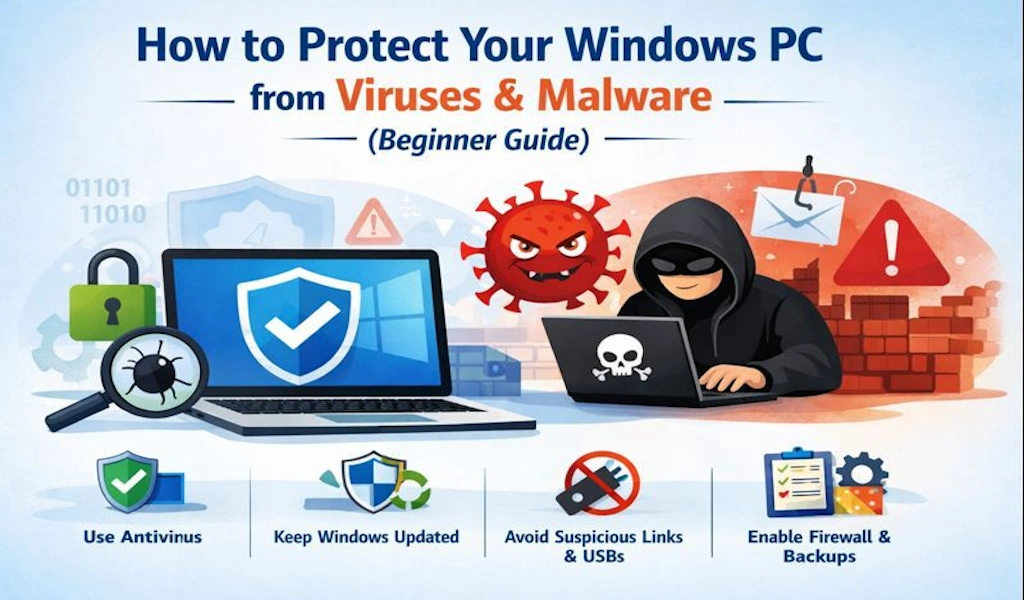
How to Protect Your Windows PC from Viruses & Malware

How to Protect Your Windows PC from Viruses & Malware
Is your Windows PC acting strange?
Slow performance, random pop-ups, unknown apps installing themselves?
You’re not alone — and no, installing 5 antiviruses will NOT fix it.
In this guide, I’ll share practical, tested methods I personally use to protect Windows PCs from
viruses and malware — especially on low- to mid-range laptops commonly used by students
and home users.
No fake security tools.
No risky software.
Just real protection that actually works.
First: How Windows PCs Get Infected
In my experience working with Windows systems, these are the most common reasons:
- Cracked or pirated software
- Fake “Your PC is infected” pop-ups
- Unsafe email attachments
- Infected USB drives
- Outdated Windows security patches
Most infections are user-caused, not system faults.
Let’s fix that step by step.
1. Keep Windows Updated (Non-Negotiable)
This is the most ignored security step.
Windows updates are not just features — they patch security holes hackers already know about.
Do this:
- Open Settings
- Go to Windows Update
- Turn on automatic updates
✔ Security vulnerabilities patched
✔ Better Defender protection
Skipping updates = leaving your door unlocked.
2. Use Windows Defender (Avoid Heavy Antivirus)
Let me be honest:
Windows Defender in 2026 is:
✔ Lightweight
✔ Well optimized
✔ More than enough for most users
Avoid:
- Cracked antiviruses
- Old third-party security suites
- “Internet Security 2020” type tools
They slow your system and often cause problems.
3. Avoid Cracked Software (Biggest Infection Source)
This is where most PCs get ruined. Cracked software often includes:
- Keyloggers
- Spyware
- Crypto miners
- Backdoors
If software is expensive:
→ Use a free alternative
→ Or official trial versions Free crack ≠ free software.
4. Be Smart While Browsing
Hackers don’t break in — they trick you.
Never trust:
- “Your PC is infected!” pop-ups
- Fake download buttons
- Random software ads
Do this instead:
- Use Edge or Chrome (updated)
- Close suspicious tabs immediately
- Download only from official sites Your browser is your first
5. Email Attachments = Hidden Danger
Emails are still a favorite attack method.
Red flags:
- Urgent tone (“Act now!”)
- Unknown sender
- ZIP or EXE attachments
If you didn’t expect the file — don’t open it.
6. Enable Windows Firewall
Many people disable this — big mistake. Windows Firewall:
✔ Blocks unauthorized access
✔ Protects against network attacks
Check:
- Open Windows Security
- Go to Firewall & network protection
- Make sure it’s ON
7. Scan USB Drives Before Opening
USB drives are silent infection carriers.
Before opening:
- Right-click USB
- Scan with Defender
Especially important for:
- Shared USBs
- Office or school computers
8. Keep Installed Apps Updated
Outdated apps = security holes. Update regularly:
- Browsers
- PDF readers
- Media players
Old software is easy to exploit.
9. Backup Important Files
Let’s be realistic.
If ransomware hits:
- Antivirus may fail
- Files may be locked Backup saves you.
✔ External drive
✔ Cloud storage
✔ Weekly backup is enough
Quick Summary (Save This)
✔ Update Windows
✔ Use Windows Defender
✔ Avoid cracked software
✔ Browse safely
✔ Don’t trust pop-ups
✔ Scan USB drives
✔ Keep firewall ON
✔ Backup important data
Final Verdict: Does This Really Work?
Yes — if done properly. In real-world use:
- Infection risk drops massively
- System stays stable
- No unnecessary slowdown
Security isn’t one tool — it’s good habits.




Loved the step-by-step instructions. Very clear and useful.