
Tech Insights
How to Speed Up Windows 11 in 2026 with Few Clicks
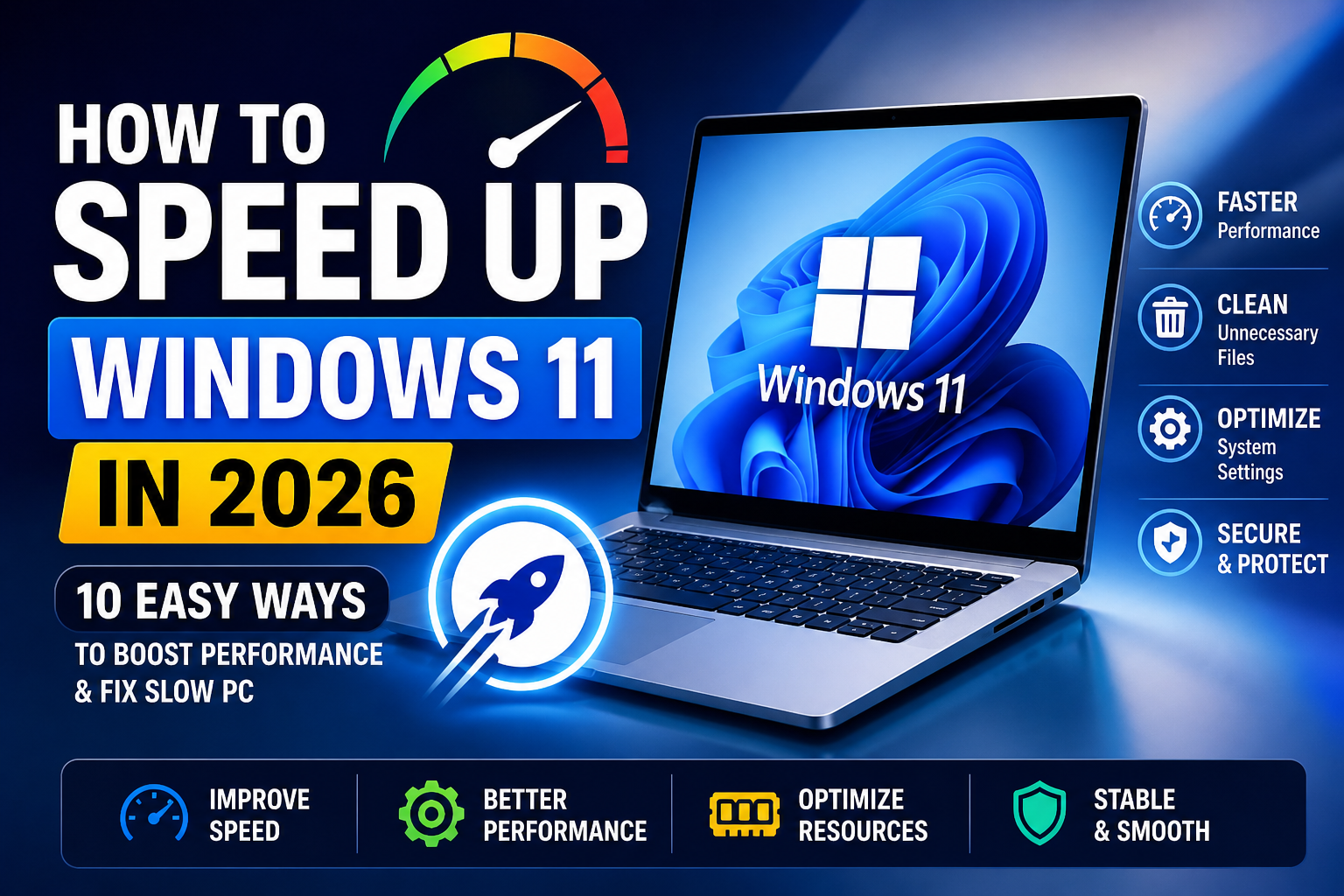
how to speed up Windows 11 in 2026 with few clicks
Is your PC running slow? In this complete guide, you’ll learn how to speed up Windows 11 in 2026 with few clicks using simple, effective methods. These tips are beginner-friendly and can significantly improve your system performance without needing technical skills.
🚀 Why Windows 11 Becomes Slow
Over time, Windows 11 may slow down due to:
- Too many startup programs
- Background apps consuming RAM
- Unnecessary files and cache
- Outdated drivers
- Low storage space
The good news? You can fix all of this easily 👇
⚡ 1. Disable Startup Programs
Startup apps slow down your PC boot time.
✅ Steps:
- Press Ctrl + Shift + Esc
- Go to Startup Apps
- Disable unnecessary programs
👉 This alone can make your PC boot much faster.
🧹 2. Clean Temporary Files
Temporary files take up space and slow performance.
✅ Steps:
- Press Windows + R
- Type
tempand delete all files - Repeat with
%temp%
💾 3. Free Up Disk Space
Low storage = slow system.
✅ Use Storage Sense:
- Go to Settings → System → Storage
- Enable Storage Sense
- Remove unnecessary files
🔄 4. Update Windows & Drivers
Outdated software causes lag.
✅ Steps:
- Go to Settings → Windows Update
- Click Check for updates
- Update drivers from Device Manager
⚙️ 5. Adjust Performance Settings
Windows visual effects consume resources.
✅ Steps:
- Search “Performance”
- Select Adjust for best performance
- Apply changes
🧠 6. Reduce Background Apps
Too many background apps slow your system.
✅ Steps:
- Go to Settings → Apps → Installed Apps
- Disable background permissions
🛡 7. Scan for Malware
Viruses can make your PC extremely slow.
✅ Steps:
- Use Windows Security
- Run a Full Scan
For better protection, refer to the official security recommendations by Microsoft.
💡 8. Disable Unnecessary Services
Advanced users can disable extra services.
✅ Steps:
- Press Windows + R → type
msconfig - Disable unwanted services
⚡ 9. Upgrade Hardware (If Needed)
If your PC is still slow:
- Upgrade to SSD
- Add more RAM (8GB → 16GB)
🔥 10. Restart Your PC Regularly
Simple but effective.
✔ Clears memory
✔ Stops background processes
✔ Improves performance
🏁 Final Thoughts
Speeding up Windows 11 doesn’t require expert skills. By following these simple steps, you can boost performance, reduce lag, and improve your overall experience.
👉 Start with startup apps and storage cleanup — you’ll notice instant results.
If you want more performance tweaks, check our Top 10 Windows Tips guide.
FAQs
1. How can I speed up Windows 11 quickly?
How to Speed Up Windows 11 in 2026 with Few Clicks…
You can speed up Windows 11 by disabling startup programs, deleting temporary files, updating your system, and reducing background apps.
2. Why is my Windows 11 PC running slow?
Your PC may be slow due to too many background processes, low storage space, outdated drivers, or unnecessary startup applications.
3. Does deleting temporary files improve performance?
Yes, removing temporary files frees up storage space and can improve system performance and speed.
4. How much RAM is needed for Windows 11?
For smooth performance, at least 8GB RAM is recommended, while 16GB is ideal for multitasking and heavy use.
5. Is upgrading to an SSD worth it?
Yes, upgrading to an SSD significantly improves boot time, app loading speed, and overall system performance.
6. How often should I restart my PC?
Restarting your PC once every few days helps clear memory and improve performance.
7. Can viruses slow down Windows 11?
Yes, malware and viruses can consume system resources and make your PC slow, so regular scans are important.

About Byteimpact
ByteImpact, is a tech entrepreneur specialising in web development, software solutions, SEO, and digital innovation, with a mission to make technology practical and accessible for everyone.
View all posts by Byteimpact


The SSD upgrade suggestion is spot on. I did it last year and it changed everything.