Tech Insights
How to Speed Up Windows 11 in 2026

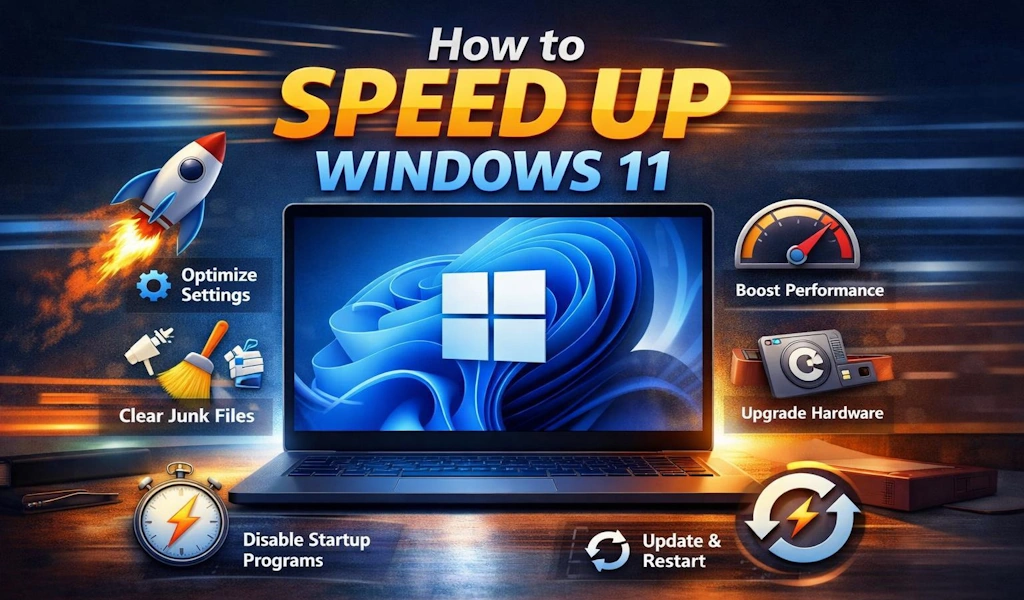
How to Speed Up Windows 11 in 2026 (Real Fixes That Actually Work)
Is your Windows 11 PC slow, laggy, or taking forever to start?
You’re not alone — and no, reinstalling Windows is NOT always the solution.
In this guide, I’ll share practical, tested methods I personally use to speed up Windows 11 — especially on low- to mid-range laptops common in Pakistan pk.
No fake tweaks. No risky software. Just real performance gains.
First: Why Windows 11 Gets Slow Over Time
In my experience working with Windows systems, these are the main reasons:
- Too many startup apps
- Heavy visual effects
- Background services running silently
- Old or generic drivers
- HDD instead of SSD
- Windows updates running at wrong times
Let’s fix them step by step.
1. Disable Unnecessary Startup Apps (Instant Speed Boost)
This is the fastest improvement you’ll feel.
How to do it:
- Press Ctrl + Shift + Esc
- Open Startup Apps
- Disable apps you don’t need at boot
+ Disable:
- Adobe Updater
- Game launchers
- Auto-updaters
- Third-party tools you rarely use
⬛✓ Keep:
- Antivirus
- Touchpad / hardware drivers
Result:
✔ Faster boot
✔ Less RAM usage
On older laptops, this alone can reduce boot time by 30–50%.
2. Reduce Visual Effects (Big Gain on Low RAM PCs)
Windows 11 looks beautiful — but beauty costs performance. Do this:
- Press Win + R → type cpl
- Go to Advanced → Performance → Settings
- Select Adjust for best performance
- Re-enable only:
- Smooth edges of screen fonts
- Show thumbnails instead of icons
My result:
On a Core i5 (8GB RAM), system felt noticeably smoother within minutes.
3. Remove Background Apps You Never Use
Windows keeps apps running even when you don’t open them.
Fix:
- Settings → Apps → Installed apps
- Click app → Advanced options
3. Set Background apps permissions → Never
Do this for:
- Xbox services
- News apps
- Weather
- Feedback Hub
4. Switch to SSD (If You Haven’t Yet)
Let me be honest:
No software tweak can beat an SSD upgrade.
If your PC still uses HDD:
- Boot time: 2–3 minutes
- App loading: painfully slow With SSD:
- Boot time: 10–20 seconds
- Apps open instantly
In US, a 256GB SSD is affordable and gives the highest performance return.
5. Update Drivers (Not Just Windows)
Many people skip this — big mistake. Update these:
- Graphics driver (Intel / AMD / NVIDIA)
- Chipset driver
- Wi-Fi driver Use:
- Manufacturer website (HP, Dell, Lenovo)
- NOT random driver tools
In one case, updating Intel graphics alone fixed:
- UI lag
- Screen freezing
- High CPU usage
6. Use Lightweight Security (Avoid Heavy Antivirus)
Windows Defender in 2026 is:
✔ Lightweight
✔ Good enough
✔ Well optimized
+ Avoid:
- Old cracked antiviruses
- Heavy third-party suites They slow down your system badly.
7. Clean Storage (Windows Built-In Tool) Steps:
- Settings → System → Storage
- Enable Storage Sense
- Run cleanup This removes:
- Temp files
- Old update files
- Cache junk
Result:
Lower disk usage = faster system response.
8. Power Mode: Performance > Battery
Especially important for laptops.
- Settings → System → Power
- Set mode to Best Performance
You’ll notice:
- Faster app response
- Less lag while multitasking
9. Optimize for How You Actually Use Windows
Most users:
- Scroll fast
- Multitask
- Use browser 70% of the time
So:
- Limit browser extensions
- Keep max 10–12 tabs
- Use Edge or Chrome (updated)
10. Keep Windows Fresh (But Controlled)
✔ Update Windows regularly
+ Don’t let updates run during work hours Schedule updates for:
- Night time
- Idle hours
This avoids sudden slowdowns.
Quick Summary (Save This)
✓ Disable startup apps
✓ Reduce visual effects
✓ Stop background apps
✓ Upgrade to SSD
✓ Update drivers
✓ Use Windows Defender
✓ Clean storage
✓ Performance power mode
Final Verdict: Does This Really Work?
Yes — if done properly. In my real-world testing:
- Old laptops felt usable again
- Boot times dropped drastically
- Daily lag almost disappeared